VM Recovery Points
The VMs/Recovery points page lists all of your currently available recovery points from backups that include specifically selected VMs. You can browse the recovery points using sorting and filtering, initiate restores, and manually remove recovery points if they aren’t locked.
Every time a backup job runs successfully, it creates a recovery point. You can use any existing recovery point to restore your VMs, together with their associated resources and persistent volumes (PVs). The restore can be performed to the same cluster or to a different cluster.
Note
Only recovery points created by backup jobs in which individual VMs have been selected are shown on this page. All recovery points are shown on the Cluster Recovery Points page.
To help you quickly find the correct recovery point for a restore, you can sort or filter by cluster, VM name, start time, expiration time, and type (snapshot vs. copy). Use the Type selector at the top of the page to show only snapshot or only copy recovery points.
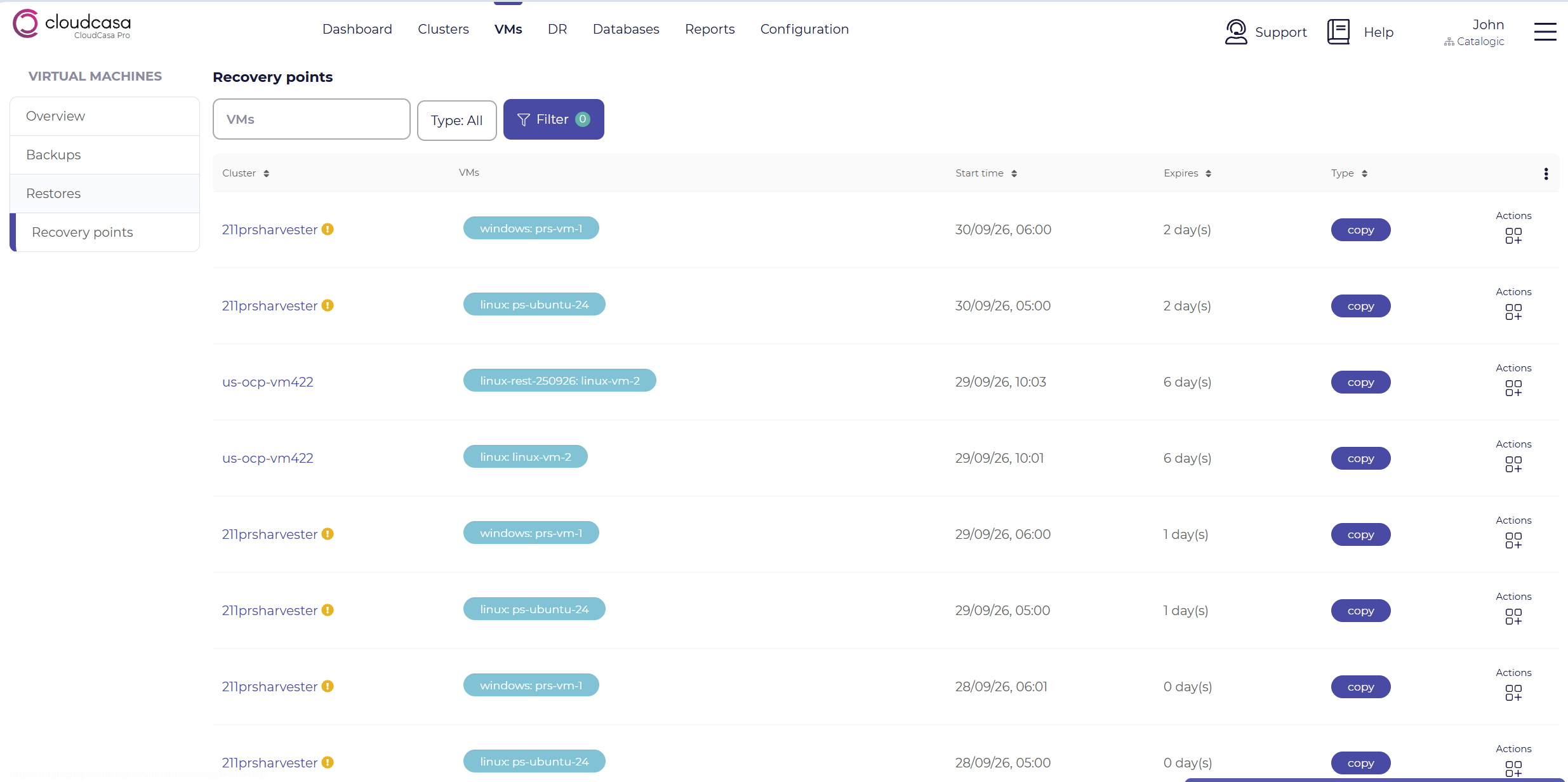
The columns displayed in the table are:
Cluster - The cluster that the backup was taken from. Click on it to open the Cluster Dashboard page for that cluster. An (!) icon indicates that the cluster is not currently active.
VMs - The VMs included in the recovery point, in the format namespace: VM name. Click on a VM to open the VM Dashboard page for that VM.
Start time - The time the backup started.
Expires - The number of days until the recovery point expires. A lock icon indicates that the recovery point is locked with SafeLock.
Type - The type of the recovery point, either snap (snapshot) or copy (copy in backup storage).
Available operations in the VM Recovery Points page
For each recovery point listed, the following operations may be available:
- Removing a recovery point manually
Click Remove to manually delete a recovery point without SafeLock even before the expiration date and time. You cannot remove recovery points with SafeLock enabled until they expire.
- Running a restore job manually
Click Restore to define a restore job using the recovery point. The Restore VM wizard will open with the recovery point already selected.
- Browse the recovery point
Click Files to browse the files in the VMs’ filesystems with the file browser. This is only available for “copy” type recovery points.
Click Resources to browse the recovery point with the resource browser. This is an easy way of finding out exactly what is in a given recovery point if you aren’t sure how the backup was configured when it was run.
See also
For more information on defining VM restores, see Defining a VM restore.
For more information on the resource and file browsers, see Browsing Recovery Points.