VM Restores
The VMs/Restores page shows all configured restore job definitions that include specifically selected VMs, and allows you to run them, edit them, delete them, or create new ones. Restore definitions are retained so that they can be modified and/or re-run later if desired. You can simply delete any old restore definitions that you don’t wish to save.
Note
Only restore jobs in which individual VMs have been selected are shown on this page. Other restore jobs are shown only on the Cluster Restores page.
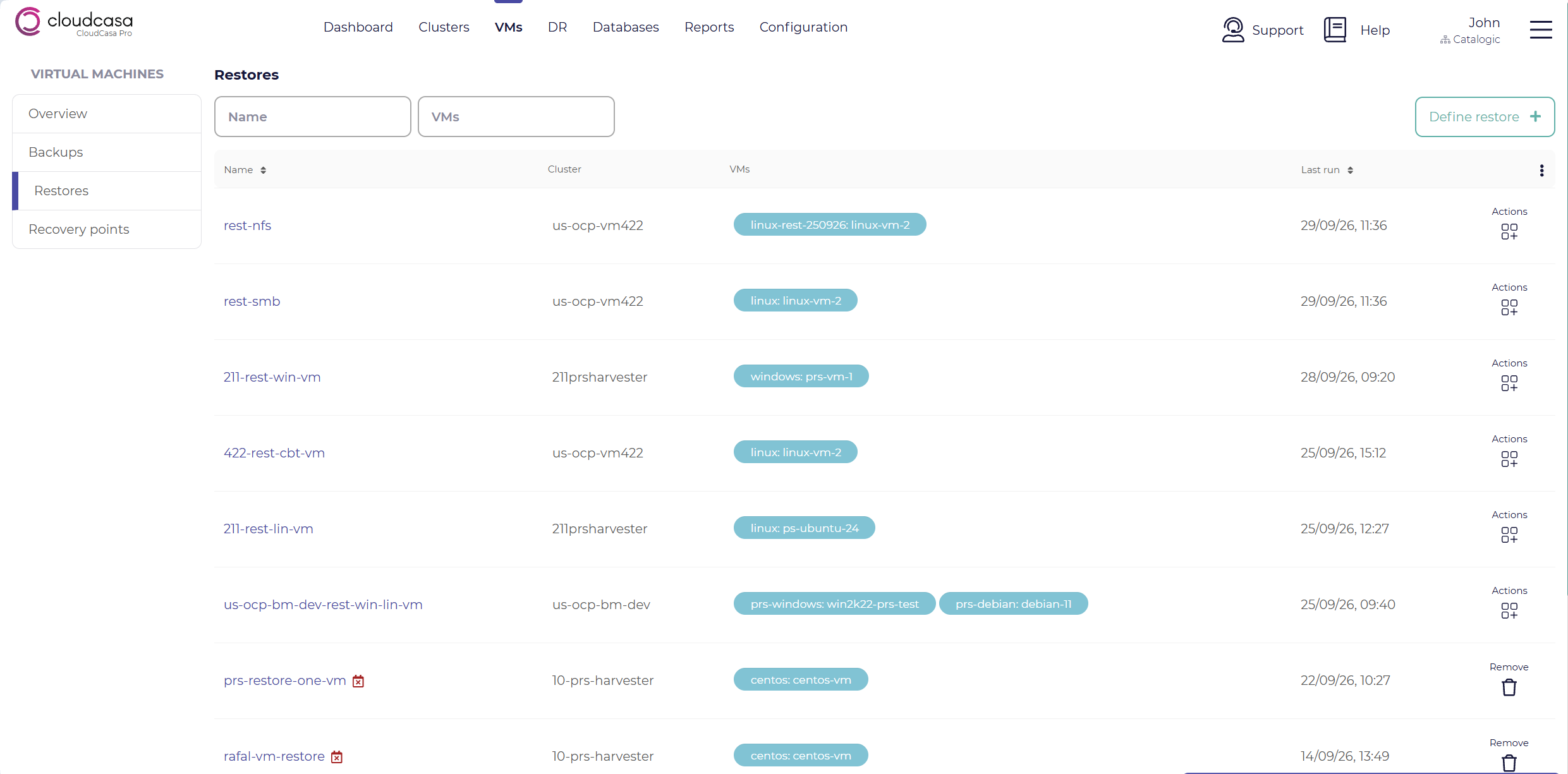
The columns displayed in the table are: Restore job name, Cluster, VMs, and Last run time. The VMs column lists the VMs selected for restore, in the format namespace: VM name. Click on a VM to open the VM Dashboard page for that VM. If more than three VMs are selected, click + N more to display the rest of them. A red calendar icon next to the restore job name indicates that the job references a recovery point that has expired.
You can filter the list by restore job name and VM name. One or more action buttons may also be available for each restore job definition.
Possible actions are:
- Remove
Delete the restore job.
- Edit
Edit the restore job definition.
- Run now
Run the restore job immediately.
Jobs which are defined on a recovery point that is no longer available cannot be run or edited. They can only be deleted.
Clicking on a restore job name in the table will take you to the job’s dashboard, which displays summary and activity information about the job.
Defining a VM restore
To define a new restore job, click the Define restore button in the upper right of the page. This will open the Restore VM wizard. The wizard can also be opened with the Define restore action on the Overview of VMs page or on the VM Dashboard page, and with the Restore action on the VM Backups and VM Recovery Points pages. In that case, some of the selections, such as the source cluster, the recovery point, or the VM, are already made for you.
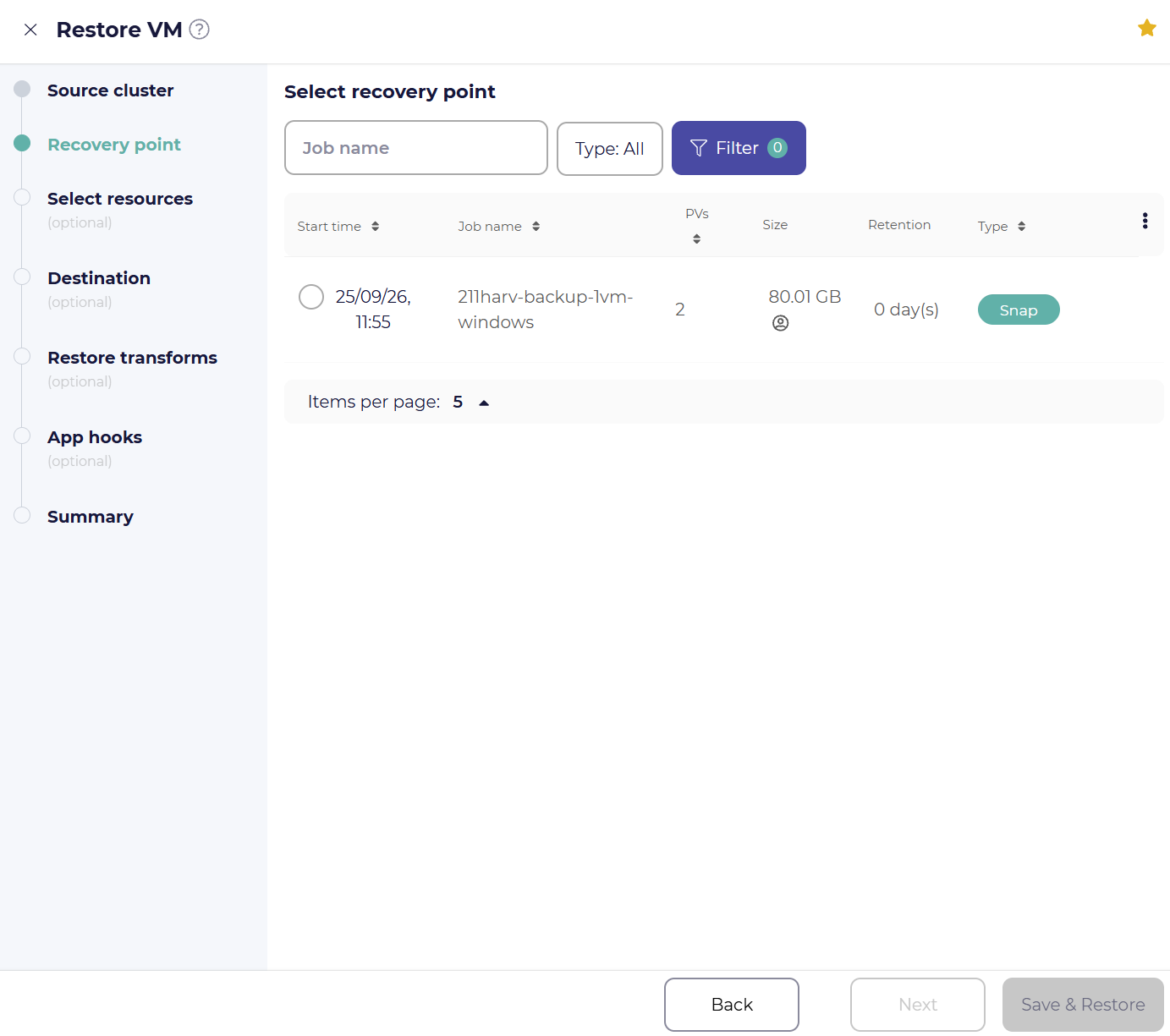
The Restore VM wizard is the same as the Cluster Restore Wizard, except that it is set up for restoring VMs:
In the Recovery point step, the list of recovery points is not complete. Only recovery points created by backup jobs in which individual VMs have been selected are shown. To restore VMs from any other recovery point, such as one from a backup of an entire cluster or namespace, use the Cluster Restore Wizard from the Clusters tab.
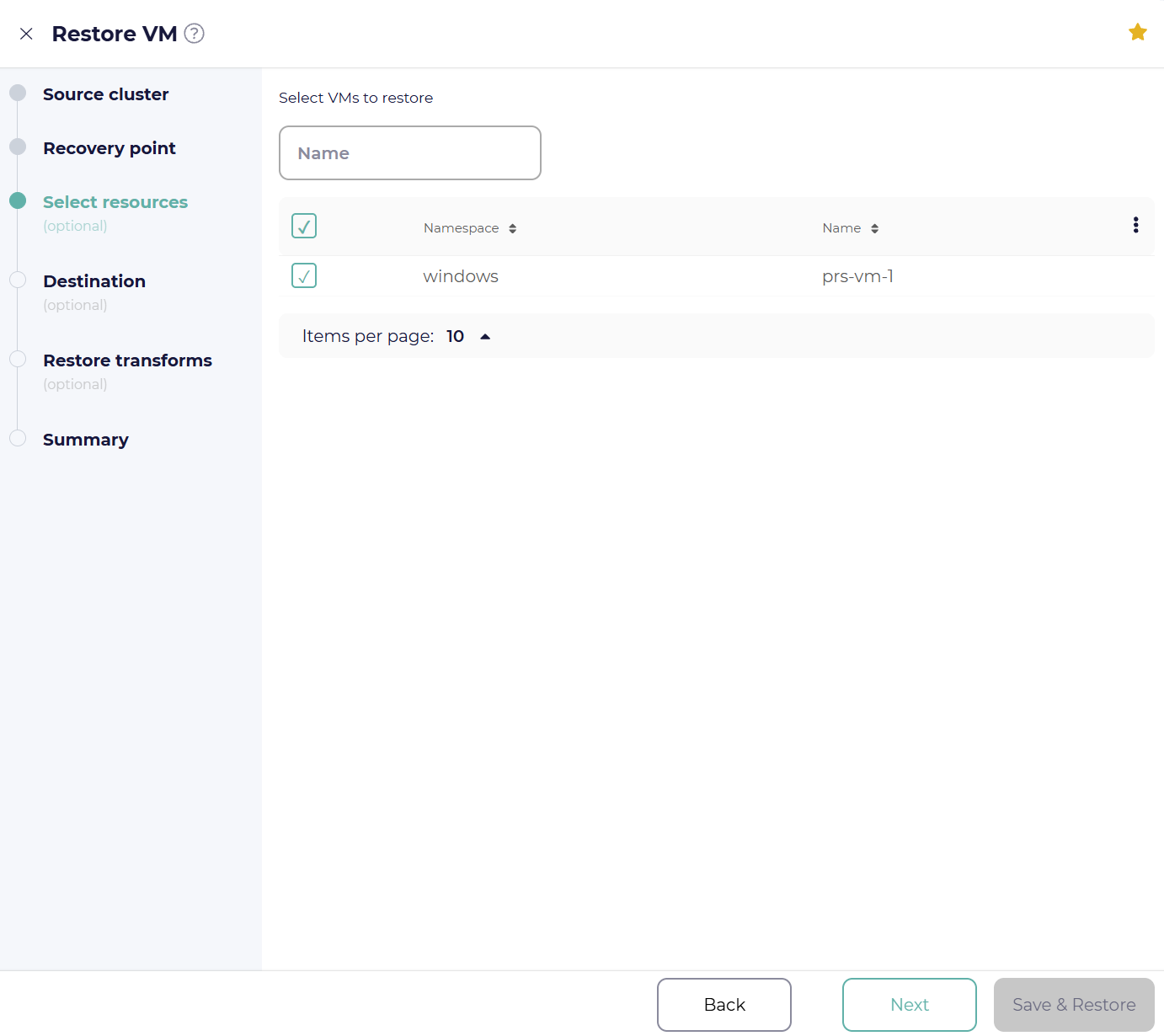
In the Select resources step, the Standard selections, VMs/PVCs, Specific resources, and Files tabs are not shown. Instead, a table lists the VMs contained in the selected recovery point, and you simply check the VMs you want to restore. You can filter the table by VM name and sort it by namespace or name. All resources associated with the selected VMs, including their PVCs, are automatically included in the restore.
The App hooks step is not shown.
The Source cluster, Destination, Restore transforms, and Summary steps are the same as in the Cluster Restore Wizard. VM-specific restore options, such as clearing MAC addresses or setting the run strategy, are available in the VM options section of the Restore transforms step.
Note
Restore jobs defined from the VMs tab are regular cluster restore jobs. They are also shown on the Cluster Restores page, and they can be managed from either place.
See also
For more information on the options available when defining a restore job, see the Cluster Restore Wizard.
For more information on VM-specific restore options, see VM Restore.