Overview of VMs
The VMs Overview page provides information about all of the KubeVirt virtual machines found on the clusters configured in CloudCasa. It also allows you to quickly define a backup or restore for a VM, and to browse the files in its backups.
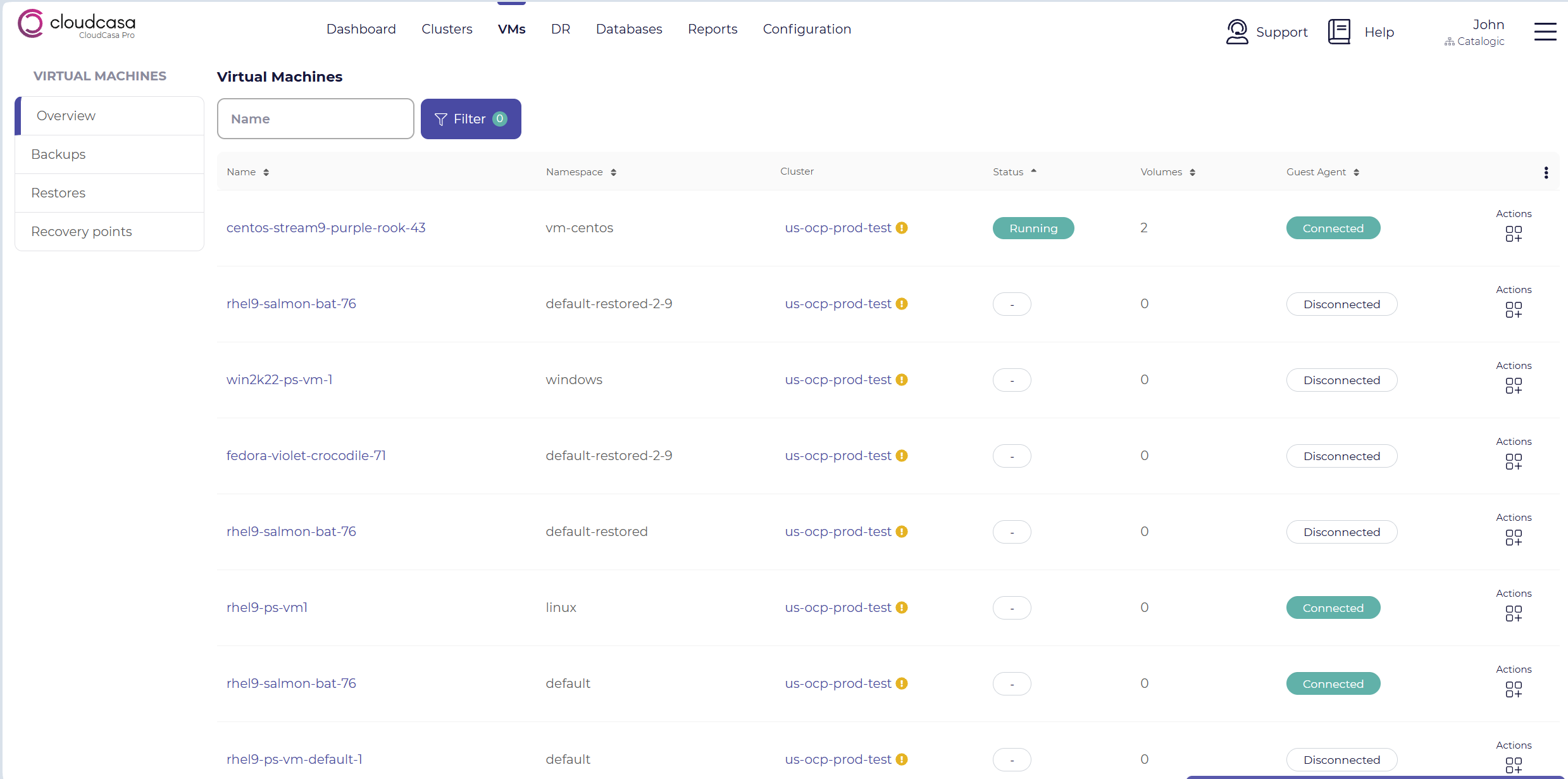
From the menu bar, go to VMs/Overview. In the list of VMs, you will see the name, namespace, cluster, status, number of volumes, and guest agent status for each VM. You can filter the list by VM name, namespace, and status, and sort it by most of these values.
The columns displayed in the table are:
Name - The name of the VM. Click on it to open the VM Dashboard page for that VM.
Namespace - The namespace that the VM is in.
Cluster - The cluster that the VM is running on. Click on it to open the Cluster Dashboard page for that cluster. An (!) icon indicates that the cluster is not currently active.
Status - The current state of the VM as reported by KubeVirt, for example Running, Stopped, Starting, or Stopping. Error states are shown in red. A dash (-) is shown if the status is not known.
Volumes - The number of volumes attached to the VM.
Guest Agent - Whether the QEMU Guest Agent (GA) running inside the VM is Connected or Disconnected. A dash (-) is shown if no guest agent information is available.
Note
CloudCasa uses the QEMU Guest Agent to freeze VM filesystems before snapshots are taken, allowing for filesystem-consistent backups of VMs. We recommend installing the guest agent on your VMs and making sure that it is connected.
See also
For more information on VM backup consistency, see KubeVirt VM Backup & Restore.
Mouse-over the “Actions” icon for a VM to display the available action buttons for that VM:
Define backup - Opens the Define VM backup wizard with the VM’s cluster and the VM itself already selected.
Define restore - Opens the Restore VM wizard with the VM’s cluster as the source and the VM itself already selected.
Browse - Opens the file browser, which allows you to browse and retrieve files from the VM’s filesystems in its backups.
See also
For more information on defining VM backups, see Defining a VM backup.
For more information on defining VM restores, see Defining a VM restore.
For more information on browsing and retrieving files from VM backups, see Browsing Files.
VM Dashboard
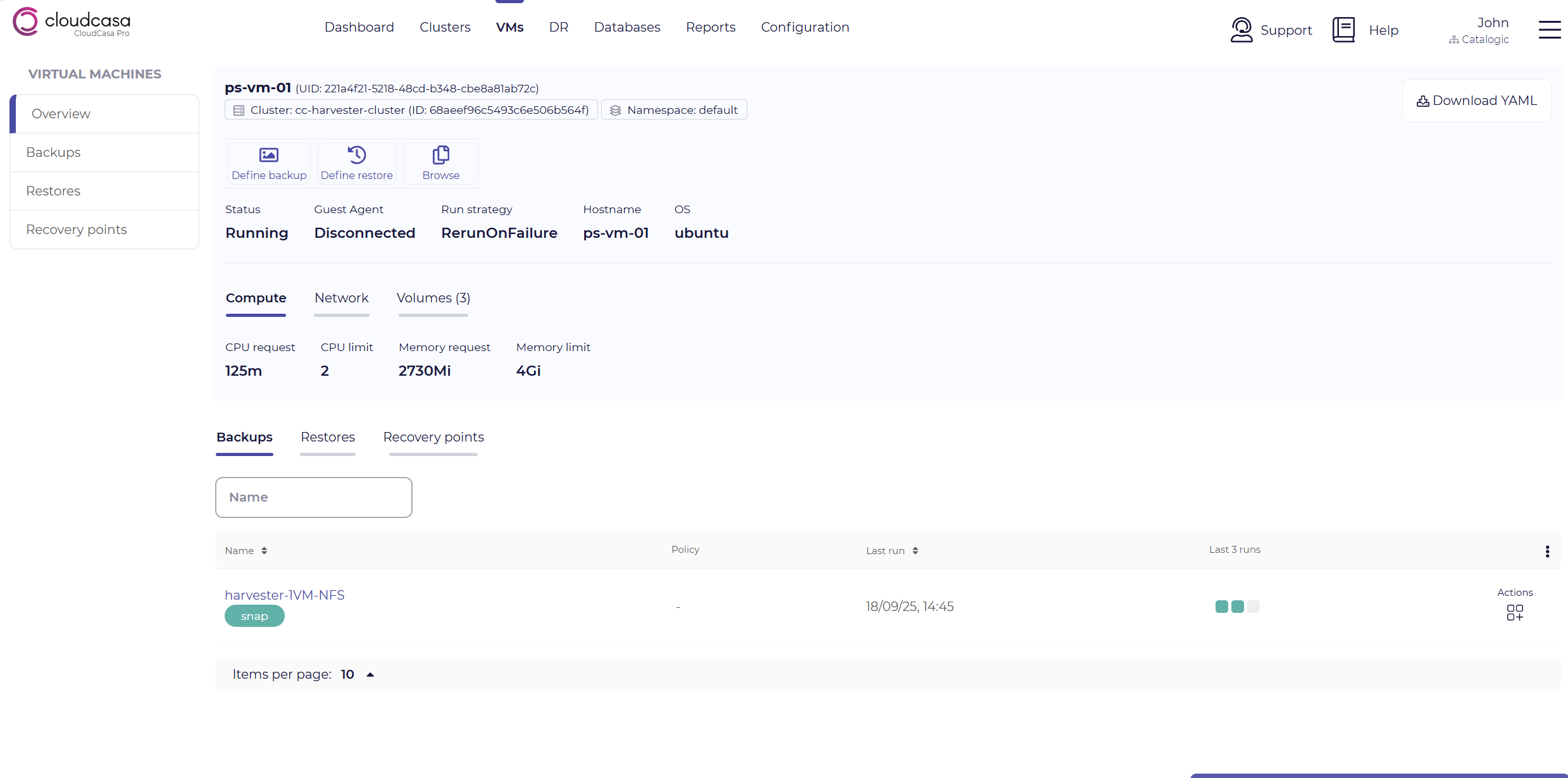
You can drill down on any VM in the list to see additional information about it. At the top of the page, the following are displayed:
VM name
VM UID (the Kubernetes resource UID)
Cluster name and ID. Click on it to open the Cluster Dashboard page for the cluster.
Namespace
Buttons are available to Define backup and Define restore for the VM, and to Browse the files in its backups. These work the same way as the corresponding actions in the VMs Overview page. The Download YAML button in the upper right allows you to download the VM’s resource YAML.
The VM details displayed are:
Status - The current state of the VM.
Guest Agent - Whether the QEMU Guest Agent is connected. Mouse-over the value to see the time of the last guest agent probe.
Run strategy - The KubeVirt run strategy of the VM, for example Always, RerunOnFailure, Manual, or Halted.
Hostname - The hostname of the VM.
OS - The operating system of the VM.
Additional details are displayed in the following tabs:
Compute - The CPU request, CPU limit, memory request, and memory limit of the VM.
Network - The networks the VM is connected to, and for each network interface, its name, MAC address, and model.
Volumes - For each disk of the VM, its name, type, PVC (claim) name, bus, and boot order.
Tabs at the bottom of the page display:
Backups - Backup jobs that include the VM.
Restores - Restore jobs that include the VM.
Recovery points - Recovery points available for the VM.
The actions available in these tabs are the same as in the corresponding VM Backups, VM Restores, and VM Recovery Points pages.
See also
For a quick guide to backing up and restoring VMs, see Backup and Restore of VMs on Kubernetes.